How a Photo Becomes a Numbered Canvas: Behind the Algorithm
See how Wabihana turns a photo into paint-by-numbers through colour quantization, regions and cleanup. Learn how deterministic image processing works.
When you upload a photo, it becomes a paint-by-numbers in a few seconds — no artist redraws it, and, despite what you might assume in 2026, no AI image model is involved. It’s a chain of deliberate, repeatable image-processing steps: read the colours, reduce them to a fixed palette, find the regions, clean up the noise, and draw the outlines and numbers. Here’s what each step actually does, in plain language.
Step 1: Read the colours in your photo
A photo can contain tens of thousands of distinct colours — every subtle gradient in a sky is dozens of near-identical blues. You can’t paint that, and you wouldn’t want to. So the first job is to understand the colours that are genuinely in your image: which hues appear, how often, and how they cluster together. Nothing is invented here; the palette comes entirely from your own pixels.
Step 2: Reduce to a fixed palette (quantization)
Next comes colour quantization — the heart of the whole thing. The image’s huge set of colours is reduced to a small, fixed palette: 16 for a Sketchy painting, up to 128 for an Insane one. The algorithm chooses the palette that best represents the photo, then maps every pixel to its nearest palette colour. That’s why a sunset gets warm oranges and a snow scene gets cool greys — the palette is fitted to the picture, not chosen from a jar.
This is a classic, well-understood technique — the same family of algorithms that once squeezed photos into 256-colour GIFs. It’s deterministic: the same photo at the same settings produces the same palette every time. There’s no randomness and no guessing about what the picture “should” look like.
Step 3: Find the regions
Once every pixel wears one of a handful of colours, neighbouring pixels of the same colour form contiguous shapes. Detecting those shapes — connected patches of a single colour — turns a flat colour map into regions: the numbered zones you’ll actually paint. A simple photo might become a few hundred; a detailed one, several thousand.
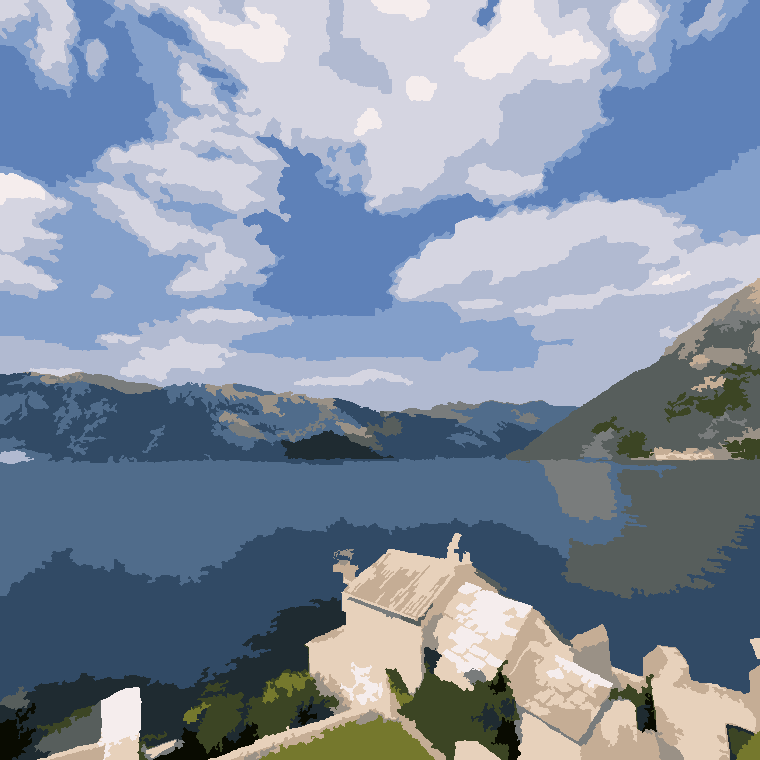
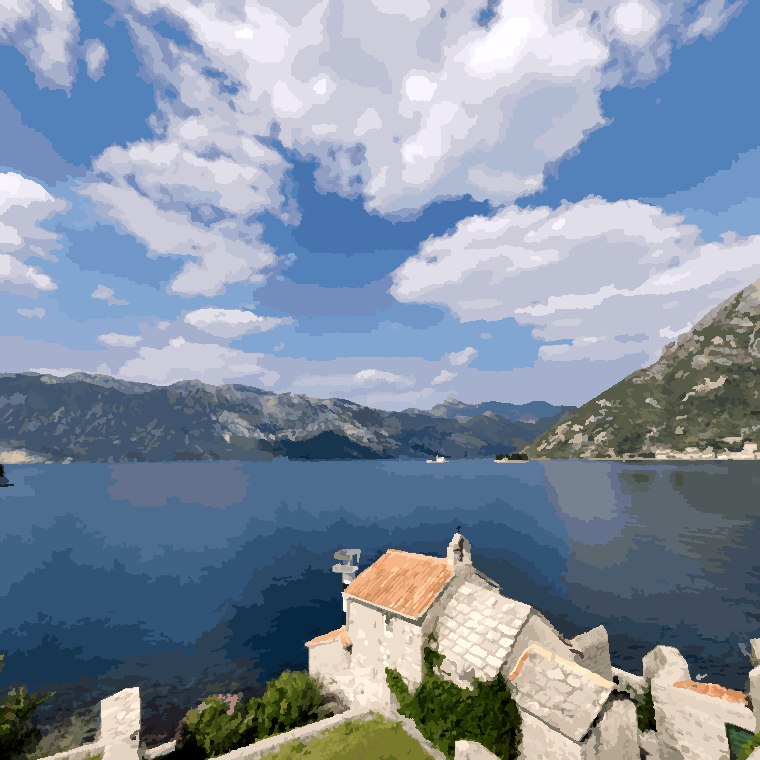
Step 4: Clean up the noise
Real photos are grainy, and a naïve pass leaves a confetti of single-pixel specks that would be impossible to paint. So the pipeline cleans up: tiny regions get absorbed into the larger neighbour they most resemble, edges are kept crisp rather than smeared, and speckle along borders is smoothed away. The goal is a canvas where every region is big enough to see and fill, without losing the details that make the picture recognisable — a thin highlight in an eye, the edge of a jaw, the line of a horizon.
Step 5: Draw the outlines and numbers
Finally, the boundaries between regions become the outlines you see, each region is labelled with its palette number, and the palette itself becomes your colour key. The result is stored as a compact map of regions plus the palette and a thumbnail — everything needed to render and play the painting, and to produce a printable blank canvas if you’d rather paint it by hand.
What this means for you
Because it’s deterministic image processing rather than a generative model, three things follow. It’s fast — seconds, not minutes. It’s faithful — the output is built from your real colours and shapes, not a machine’s reinterpretation of them. And it’s private: your photo is used only to build the scene and is deleted from the servers within seven days, and it’s never used to train any AI model. You can read the specifics in our Privacy Policy.
It also explains why the photo you start with matters so much. The algorithm can only work with the colour and detail actually present in your image — which is exactly what the photo-choosing guide is about — and why picking a detail level is really about how many regions and colours you want, covered in how color count changes difficulty. For what the palette does once it reaches you — why value matters more than hue, and why some colours in the key look wrong on their own — there’s colour theory for paint by numbers.
Frequently asked questions
Turn your own photo into a paint-by-numbers
Free to start, private, and ad-free while you paint — on web, iPhone, and Android.
Start painting